find and rename
Jump to a directory, filter a panel, find files, rename many files at once and compare two directories.
Go to a directory (Ctrl+D)
Ctrl+D opens "Go to directory": a filter line over two lists.
- Bookmarks, marked
*, in the order you added them. - Frequent directories, the ones you visit often and recently, best first. The active panel's own directory is left out.
Enter loads the selected directory into the active panel. Insert bookmarks the active
panel's directory, and Delete removes the selected bookmark or forgets the selected
frequent directory. Paths under your home directory show as ~/....
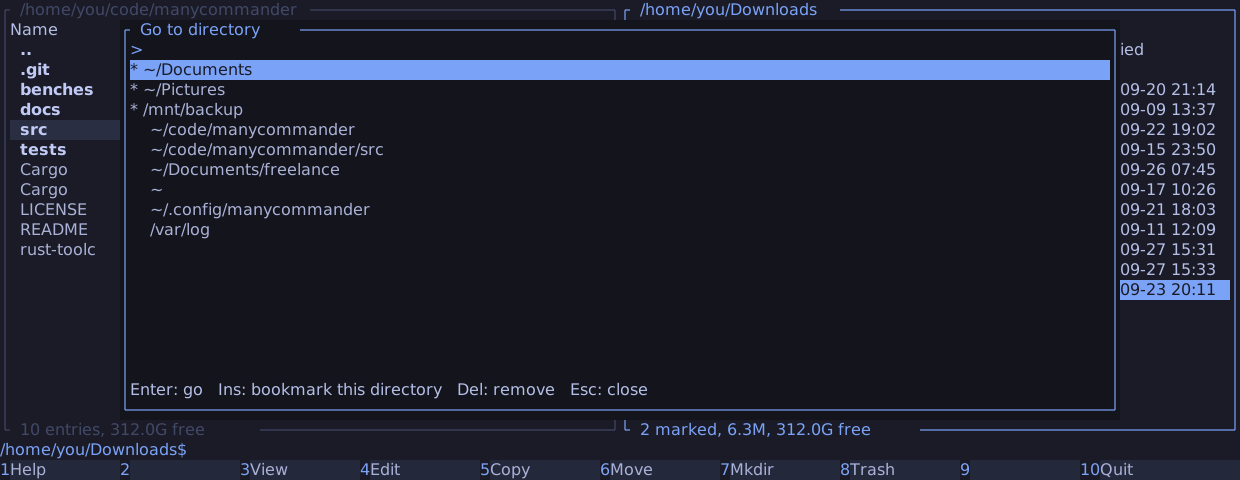
Type keywords separated by spaces to filter both lists. Every keyword must occur in the
path, in the order typed, and the last one must occur in the last component. ASCII letters
match either case. do rep matches ~/Documents/reports, but not ~/reports/docs.
Frecency
manycommander records a visit each time you go to a directory: with Enter, the parent
keys, the history, cd, this dialog or z. Starting, restoring the last session and
refreshing do not count. A directory's score is its visit count, weighted by the time since
the last visit:
| Last visit | Weight |
|---|---|
| Within an hour | 4 |
| Within a day | 2 |
| Within a week | 0.5 |
| Longer ago | 0.25 |
When the visit counts add up to more than 10000, they all shrink, and directories that fall below one visit drop out. This is zoxide's model, so the ranking feels familiar.
A frequent directory that no longer exists fails to load like any other directory: the panel stays where it was, and the directory drops out of the list. A bookmark never drops out on its own.
zoxide
When zoxide is on PATH, the first Ctrl+D or z of a session reads its ranking with
zoxide query --list --score, for at most one second, and merges it in: a directory's
score is the larger of the two. manycommander never writes to zoxide's database. Delete
on a directory that only zoxide knows hides it for the rest of the session. To turn the
import off, set zoxide = "off" in the configuration.
Where they are kept
| File | Holds |
|---|---|
~/.config/manycommander/hotlist.toml | The bookmarks, rewritten atomically after every change. A file that does not parse is never overwritten; bookmark changes fail until you fix or remove it |
~/.local/state/manycommander/dirs.tsv | The frequent directories. Each session adds its visits on exit, under a lock, so two instances that exit together keep each other's visits |
z on the command line
z KEYWORDS on the command line loads the best-scoring frequent directory into the active
panel, with the dialog's matching rules and zoxide's ranking. When no frequent directory
matches, it takes the first matching bookmark; when nothing matches, it says "z: no match".
z alone opens the dialog. The line never reaches the shell.
Quick filter (Ctrl+F)
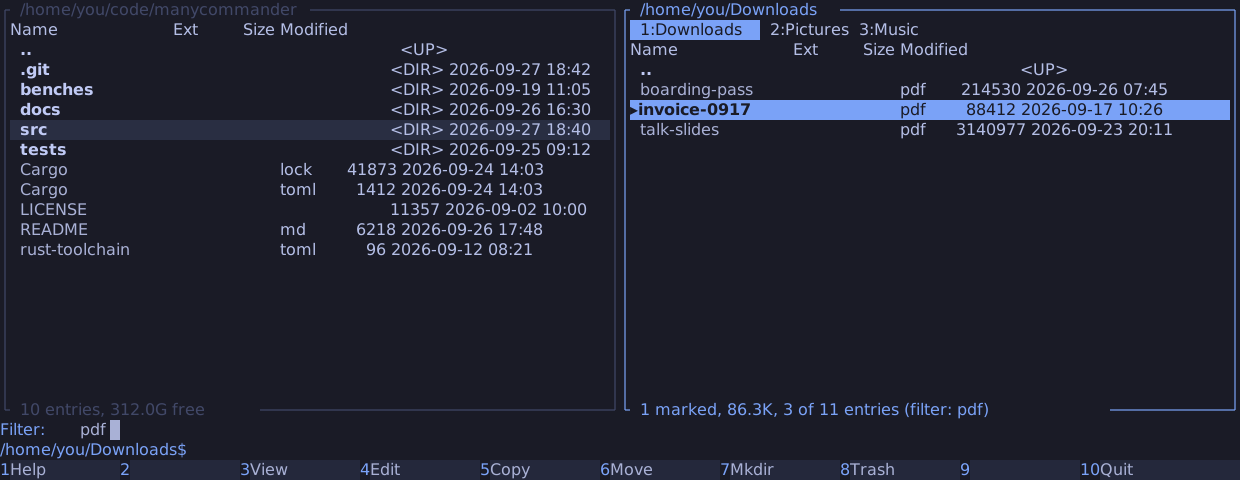
Ctrl+F opens the filter line on the status row. Each keystroke narrows the active panel at
once.
- Text without
*,?or[matches any part of the name. With one of them, it is a glob over the whole name, such as*.jpg. ASCII letters match either case. - Directories are filtered like files;
..stays. EnterorCtrl+Fcloses the line and keeps the filter.Escclears the filter and closes the line.- While the line is open,
Up,Down,PgUpandPgDnmove the cursor. Any other key closes the line, keeps the filter, and then does what it always does. - The cursor moves to the first match.
- The filter survives a refresh, and a change of directory clears it.
- The footer shows the count, such as
12 of 340 entries (filter: jpg).
The verbs act only on the entries you see. A mark on an entry the filter hides is kept, but it does not count and nothing acts on it until the filter goes away.
Find files (Alt+F7)
Alt+F7 opens the find form:
| Field | Default | Meaning |
|---|---|---|
| Search in | The active panel's directory | Where the search starts |
| Name | Empty: every name | Part of the name, or a glob over the whole name when it contains *, ? or [ |
| Containing text | Empty: no content search | Literal text. Only regular files whose name matches are read |
| Hidden entries | The panel's hidden-file setting | Also match, and descend into, names that start with . |
| Stay on this filesystem | On | Do not descend into other mounted filesystems |
| Match case | Off | When off, ASCII letters match either case, in the name and in the text |
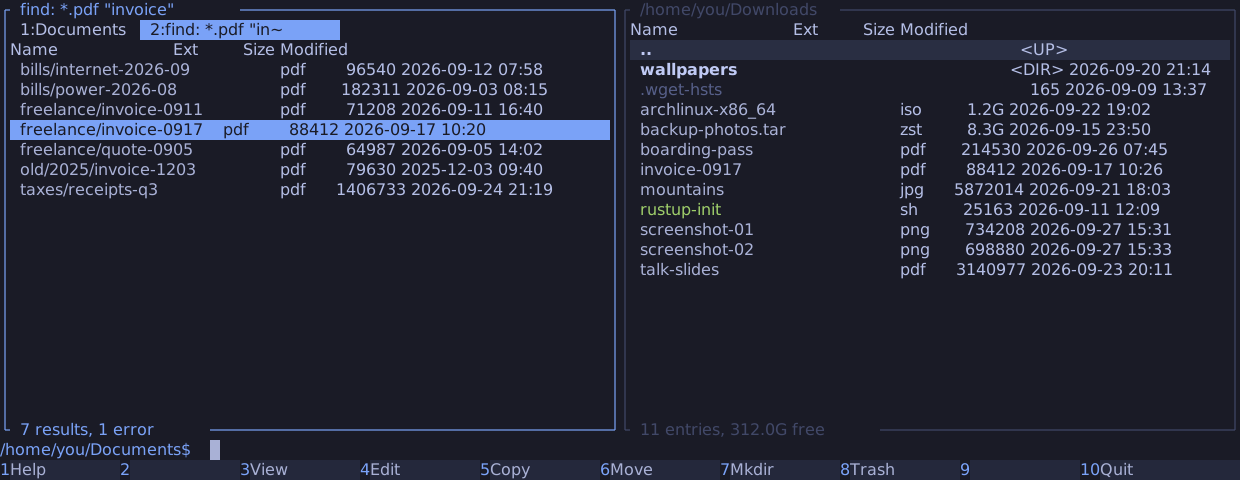
Enter starts the search in a new tab on the active side, titled like
find: *.pdf "invoice", and the tab fills as results arrive. Its footer counts the results
and the directories that could not be read, and says (searching) until the search is done.
- Symbolic links are never followed. A symlink to a directory can match by its name, but the search does not descend into it.
- Directories, symlinks and special files match by name too. Content search opens regular files only, never a FIFO or a device.
- Content search treats binary files like text.
- Content search does not read the holes of sparse files. A hole holds only NUL bytes, so text that needs NUL bytes from a hole is not found there.
- A directory reached a second time, through a bind mount, is searched once.
- A directory that cannot be opened or read counts as an error, and the search goes on.
- A search stops at 1,000,000 results and says "result limit reached".
- Starting another search, or leaving the results of the tab that is searching, stops the
search. The tab keeps what it found and says
(cancelled).
The results tab
The entries of a results tab are paths relative to the search root. Sorting, marks, the
quick filter (it matches the relative path) and the verbs work as in a directory panel:
F5 copies results from many directories into the other panel, and F8 trashes them.
Keys lists what each key does there. Enter on a file goes
to the file's directory with the cursor on it, and Alt+Left returns to the results; F3
and F4 open the file.
A results tab has no .. row and does not refresh on its own. Ctrl+R, and the end of
every job, re-read the results and drop the ones that are gone. A result counts as hidden
when any component of its path starts with .. When the search included hidden entries,
the tab shows them; Alt+. toggles them as usual.
A panel's history keeps its three most recent results, and Alt+Left goes back to them. On
exit, manycommander saves a results tab as a tab on its search root.
Multi-rename (Ctrl+M)
Ctrl+M opens the multi-rename tool for the marked entries, or for the entry under the
cursor. In a results tab, each result is renamed in its own directory. The tool fills the
panel area, with the form at the top and a preview of every old -> new below it.
![manycommander's multi-rename tool for six photos in ~/Pictures/rome, with the name mask [P]-[C], lower case and two counter digits: IMG_0412.JPG becomes rome-01.jpg, and the row of IMG_0414.JPG says name exists, because rome-03.jpg is already in the directory](/screens/multi-rename.svg)
| Field | Default | Meaning |
|---|---|---|
| Name mask | [N] | The new name without the extension |
| Extension mask | [E] | The new extension. Empty means no extension and no dot |
| Search | Empty | Text to replace in the result of the masks |
| Replace | Empty | The replacement. In regex mode, $1 .. $9 and ${name} insert groups |
| Regex | Off | Search is a regular expression |
| Match case | Off | When off, Search matches ASCII letters in either case |
| Case | Unchanged | Unchanged, lower, upper or title |
| Counter start, step, digits | 1, 1, 1 | For [C] |
The masks apply first, then search and replace, then the case. The case applies to the name
and the extension separately. Title case capitalises the first character of each word of
the name, where a word starts at the beginning and after a space, _, - or ., and
lowercases the rest and the extension: my photo.JPG becomes My Photo.jpg.
Masks
| Placeholder | Value |
|---|---|
[N] | The name without the extension. The extension is what follows the last ., unless that . is the first character |
[N2] | The second character of the name |
[N2-5] | Characters 2 to 5 |
[N2-] | Character 2 to the end |
[N-3] | The last 3 characters |
[E], [E1-3] | The extension, and character ranges of it as for [N] |
[C] | The counter: the start value for the first entry, then one step more for each next entry, zero-padded to the digits |
[P] | The name of the parent directory |
[Y], [M], [D] | Year, month and day of the modification time, in the local time zone |
[h], [m], [s] | Hour, minute and second of the modification time |
[[, ]] | A literal [ and ] |
Characters count from 1. A character is a Unicode character, or one byte where a name is
not valid UTF-8, so such a name survives byte for byte. A range past the end is clamped:
[N2-5] of ab is b, and [N4] of ab is empty. An unknown placeholder is an error.
Examples
| Name mask | Extension mask | Other fields | Before | After |
|---|---|---|---|---|
holiday-[C] | [E] | Digits 3 | IMG_4711.JPG, IMG_4712.JPG | holiday-001.JPG, holiday-002.JPG |
[Y]-[M]-[D] [N] | [E] | notes.txt, modified on 28 September 2026 | 2026-09-28 notes.txt | |
[P] [C] | [E] | Digits 2 | IMG_0001.jpg in ~/Pictures/rome | rome 01.jpg |
[N1-8] | [E] | a-very-long-name.txt | a-very-l.txt | |
[N] | md | README.markdown | README.md | |
[N] | (empty) | backup.sh | backup | |
[N] | [E] | Search _, Replace one space | my_holiday_photo.jpg | my holiday photo.jpg |
[N] | [E] | Regex, Search ^(\d{4})(\d{2})(\d{2}), Replace $1-$2-$3 | 20260928_scan.pdf | 2026-09-28_scan.pdf |
[N] | [E] | Case lower | IMG_4711.JPG | img_4711.jpg |
Preview and errors
Each row of the preview says unchanged, ok, or what is wrong. These are errors:
- an unknown or malformed placeholder;
- a regular expression that does not compile, or is too large;
- an empty name,
.,.., a name with/, or a name longer than 255 bytes; - two entries of one directory with the same new name;
- a new name that another entry of the panel already has.
Enter renames only when no row has an error; otherwise it shows the first error. The
rename never overwrites anything, and swaps and cycles such as a -> b, b -> a work.
Ctrl+Z in the dialog undoes the last multi-rename of the session. How the rename keeps
every file reachable is on the
file operations page.
Compare directories (Shift+F2)
Shift+F2 compares the two panels and marks the entries that differ, so that F5 can copy
them across next. It needs two directory panels, not a results tab. Only visible entries
take part, and the new marks replace every existing mark in both panels. The form offers
by date and size (the default) or by content, and include directories (on).
By date and size reads no file:
| Case | Marked |
|---|---|
| A name on one side only | On that side. A directory only with "include directories" |
| Two files, one newer | The newer one. The coarser timestamp resolution of the two filesystems decides, so two seconds on vfat count as the same time |
| Two files with the same time and different sizes | Both |
| The same time and size, two directories, or different types | Neither |
The status row sums it up:
left: 3 newer, 5 only here; right: 1 newer, 2 only here; 1 differ in size
By content marks the names on one side only as above, then compares every pair of
same-named files. A pair of different sizes differs without being read. A pair of equal
sizes is read and compared byte by byte, and a differing pair is marked on both sides.
Content compare opens regular files only, never a FIFO or a device. The status row shows
the progress, and Esc cancels. The summary counts only here, differ in size,
differ in content and could not be read; a pair that could not be read is not marked.
Compare runs in the background. When a panel changes before the compare finishes, manycommander drops the result and says "the directories changed; compare again".